
Website Tools: WordPress Security Scan, Zip Website Files & Secure Gateway
The Tools page gives you three powerful self-service tools: a server-based WordPress Security Scan, a one-click Zip Website Files backup and the ability to unblock an IP address on our Secure Gateway firewall, without waiting for support.
On this page
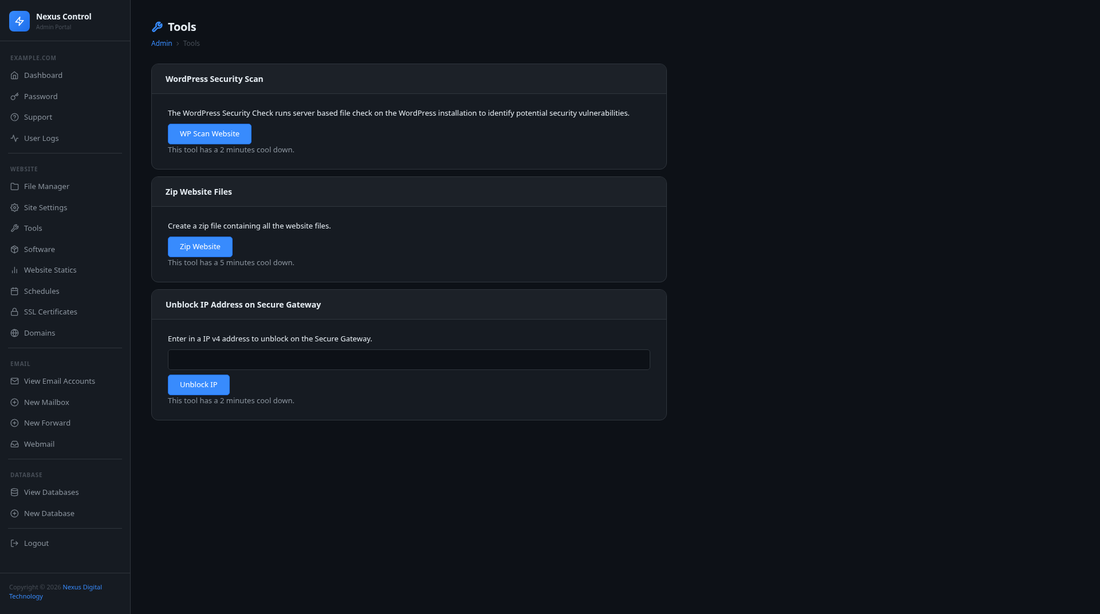
WordPress Security Scan
The WordPress Security Scan runs a server-based file check on your WordPress installation to identify potential security vulnerabilities. Because it runs on the server itself, it checks your actual files rather than just what a visitor can see from the outside, and it doesn't need a plugin installed in WordPress.
How to run a scan
- Click Tools in the Website section of the sidebar.
- In the WordPress Security Scan card, click WP Scan Website.
- Wait for the scan to finish and review the results. Each scan is recorded in your User Logs.
When to run it
- After updating WordPress, plugins or themes, to confirm nothing vulnerable is left behind.
- As a routine check, for example once a month.
- If you suspect something is wrong, such as unexpected redirects, spam pages, new admin users, unknown files, or warnings from Google or your browser.
- After a security alert, such as a widely reported WordPress or PHP vulnerability.
Zip Website Files
Zip Website Files creates a single zip archive containing all your website files, which you can then download to your computer as a backup.
- In the Zip Website Files card, click Zip Website.
- Wait while the archive is created. Large websites can take a few minutes.
- Download the zip file to your computer (or cloud storage) and keep it somewhere safe.
Zip your website before:
- major WordPress, plugin or theme updates
- moving your site to a new design, developer or server
- editing code or deleting files in the File Manager
- installing new software over an existing website
Unblock IP Address on Secure Gateway
Our Secure Gateway is a security firewall that sits in front of your website, email and FTP services. It automatically blocks IP addresses that show signs of an attack, such as repeated failed login attempts or suspicious requests. This stops password-guessing bots, but occasionally a genuine user, such as you, a staff member or your developer, can be blocked after entering the wrong password a few times.
Signs you may be blocked
- Your website, Webmail or email program suddenly won't connect from one location (e.g. your office), but works from your mobile phone's data connection.
- Your email program keeps asking for your password, or FTP can't connect.
How to unblock an IP address
- Find the public IPv4 address of the blocked connection. On the blocked computer or network, search "what is my IP" in a browser. If that network can't reach anything, ask the person who is blocked to do this and send it to you.
- Sign in to the control panel from a connection that isn't blocked, such as a mobile phone hotspot.
- Go to Tools and type the address into the Unblock IP Address on Secure Gateway box, e.g.
203.0.113.25. - Click Unblock IP. Access is restored without waiting for support.
Tool cool-down times
To protect server performance, each tool has a short cool-down period before it can be run again:
| Tool | Button | Cool-down |
|---|---|---|
| WordPress Security Scan | WP Scan Website | 2 minutes |
| Zip Website Files | Zip Website | 5 minutes |
| Unblock IP Address on Secure Gateway | Unblock IP | 2 minutes |

