
File Manager
The File Manager lets you work with your website files directly in your browser. You can browse folders, upload, edit, download, rename and delete files without installing an FTP program.
On this page
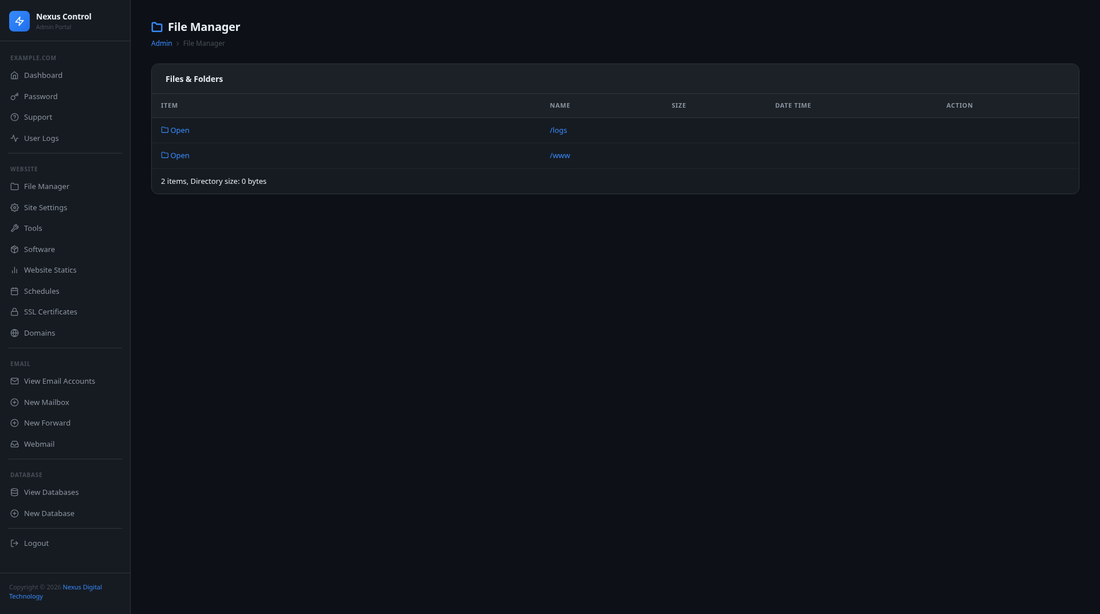
Top-level folders: /www and /logs
Click File Manager in the Website section of the sidebar. The first screen shows the two top-level folders in your hosting account:
- /www – your public website root. Anything in this folder can be viewed on the web, so
/www/index.phpis the home page ofhttps://example.com/. - /logs – the web server log files for your site. These are useful to you or your developer when tracking down errors or unusual traffic.
Click Open next to a folder to go into it. The footer of the table shows how many items are in the folder and the total directory size.
Working inside /www
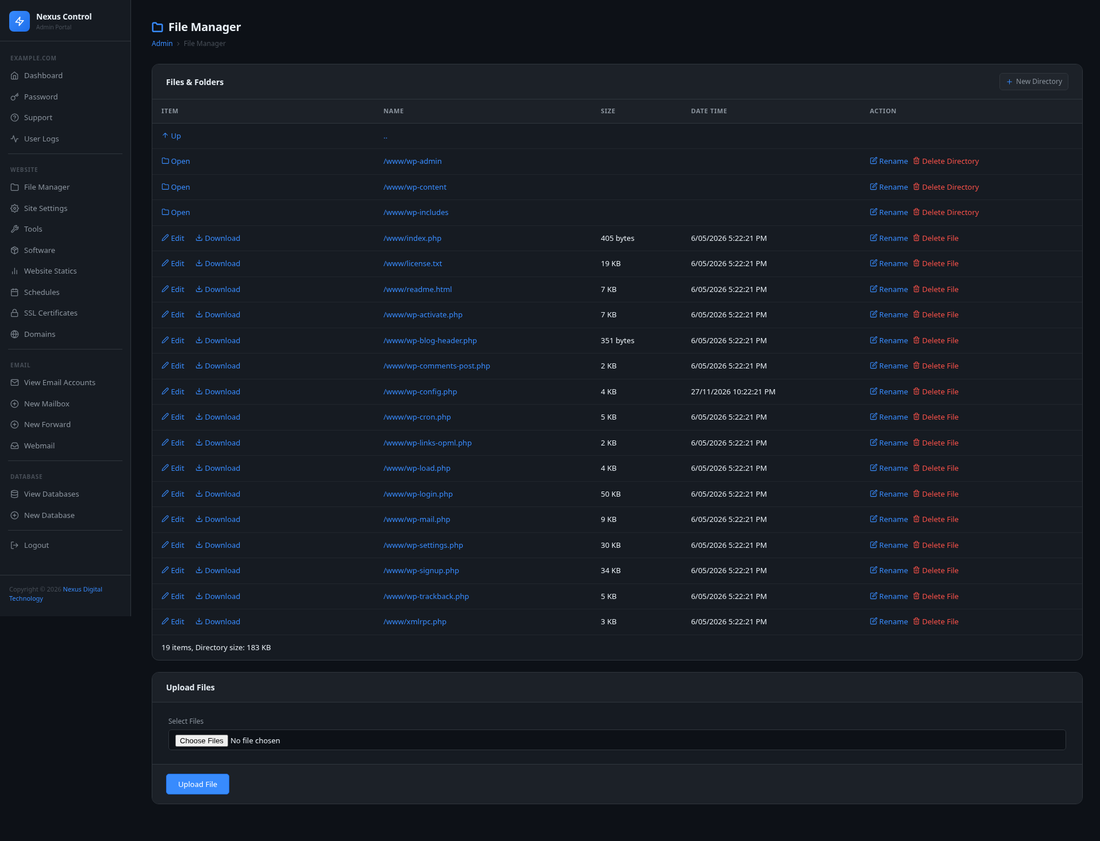
Inside /www you will see your website's folders and files. For a WordPress site this includes wp-admin, wp-content, wp-includes and files such as wp-config.php.
| Column | Meaning |
|---|---|
| Item | Open for folders, or Edit and Download for files. Up takes you to the parent folder. |
| Name | The full path of the file or folder. Click a file name to open it. |
| Size | The file size. |
| Date Time | When the file was last modified. A recently changed file you didn't edit can be a warning sign of a hacked site. |
| Action | Rename and Delete File / Delete Directory. |
Moving between folders
Click Open to go into a folder, and click Up (the .. row at the top of the list) to go back up one level.
Creating a new folder
Click + New Directory at the top right of the Files & Folders card, enter a name and confirm. The folder is created inside the folder you are currently viewing. Use lower-case names without spaces (e.g. images-2026) so web addresses stay clean.
Uploading files
- Go to the folder you want to upload into, for example
/www/wp-content/uploads. - Scroll down to the Upload Files card.
- Click Choose Files under Select Files and pick one or more files from your computer.
- Click Upload File. The files appear in the list once the upload finishes.
Editing, downloading and renaming files
- Edit – click Edit (or the file name) to open a text file such as
.php,.html,.css,.txtor.htaccessin the built-in editor. Make your changes and save. - Download – saves a copy of the file to your computer. It's good practice to download a file before you edit it, so you can put it back if something goes wrong.
- Rename – changes the name of a file or folder. Renaming a page or folder changes its web address, so update any links to it.
wp-config.php or .htaccess can take your whole website offline. Download a copy first, or ask your developer to make the change.Deleting files and folders
Click Delete File or Delete Directory on the item's row and confirm. Deleting a directory removes everything inside it.

