
Site Settings, FTP & Caching
Site Settings shows how your website is configured on our servers, gives you the details you need to connect by FTP, lets you whitelist IP addresses for FTP access and shows your cache settings.
On this page
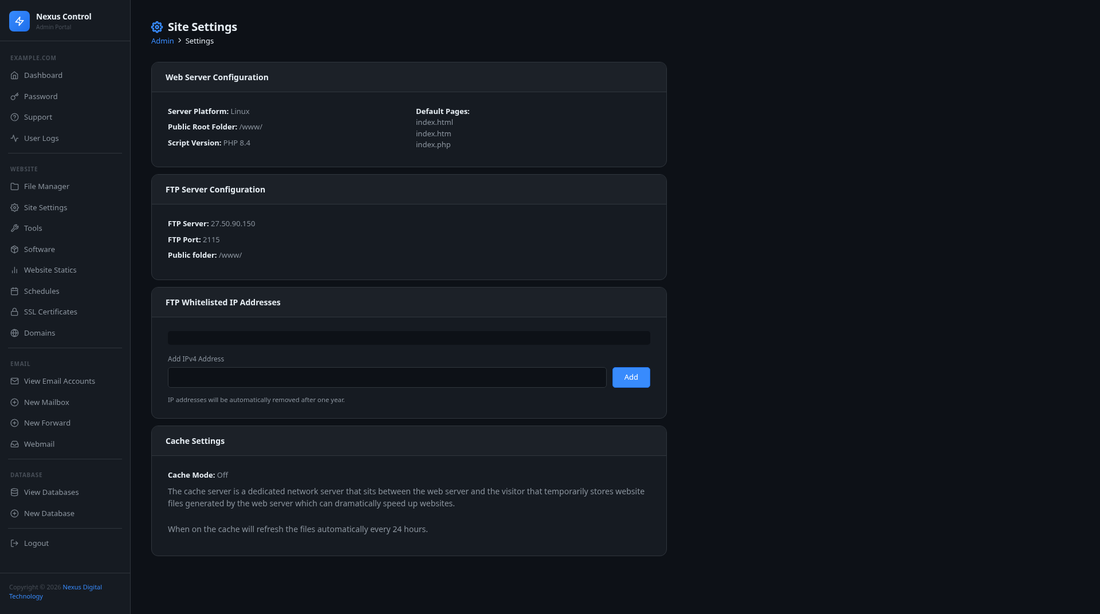
Web Server Configuration
| Setting | What it means |
|---|---|
| Server Platform | Linux or Windows. Linux hosting runs PHP applications such as WordPress and OpenCart. Windows hosting runs ASP.NET websites. |
| Public Root Folder | /www/ – the folder your website is served from. Files must be uploaded here (or into sub-folders) to appear on the web. |
| Script Version | The version of the scripting language your site runs on, e.g. PHP 8.4. Make sure your themes, plugins and custom code support this version. |
| Default Pages | The file names the server looks for, in order, when a visitor opens a folder without a file name: index.html, index.htm, index.php. |
FTP Server Configuration
FTP lets you or your web developer transfer files using a program such as FileZilla. Use these details from Site Settings:
| Setting | Value |
|---|---|
| FTP Server (host) | The server address shown in your Site Settings. |
| FTP Port | 21xx (not the usual port 21, so remember to change it in your FTP program) |
| Public Folder | /www/ |
Your FTP username and password are supplied with your hosting account. Contact support if you need them reset.
FTP Whitelisted IP Addresses
To protect your website from hackers trying to guess FTP passwords, FTP access is restricted by IP address. Only computers connecting from a whitelisted IPv4 address can connect by FTP.
- Find the public IPv4 address of the computer that needs FTP access. Searching "what is my IP" in your browser on that computer will show it (it looks like
203.0.113.25). - Type the address into Add IPv4 Address.
- Click Add. The address appears in the whitelist above.
Cache Settings
Cache Mode shows whether caching is On or Off for your website. The cache server is a dedicated network server that sits between the web server and your visitors. It temporarily stores copies of the files generated by your web server, which can dramatically speed up websites and reduce load on the web server.
When caching is on, the cache refreshes its stored files automatically every 24 hours. That means changes you make to your website may take up to 24 hours to show for every visitor.

