
Logging In & Dashboard Overview
This page explains how to sign in to the Nexus Control Panel, how the navigation works and what each part of the Dashboard tells you about your hosting account.
Signing in to the Nexus Control Panel
- Open https://control.nexusdigital.com.au/ in any modern web browser.
- In Username, enter your primary domain name without
wwworhttps://, for exampleexample.com. - In Password, enter your control panel password. This was supplied when your hosting account was set up.
- Click Sign In.
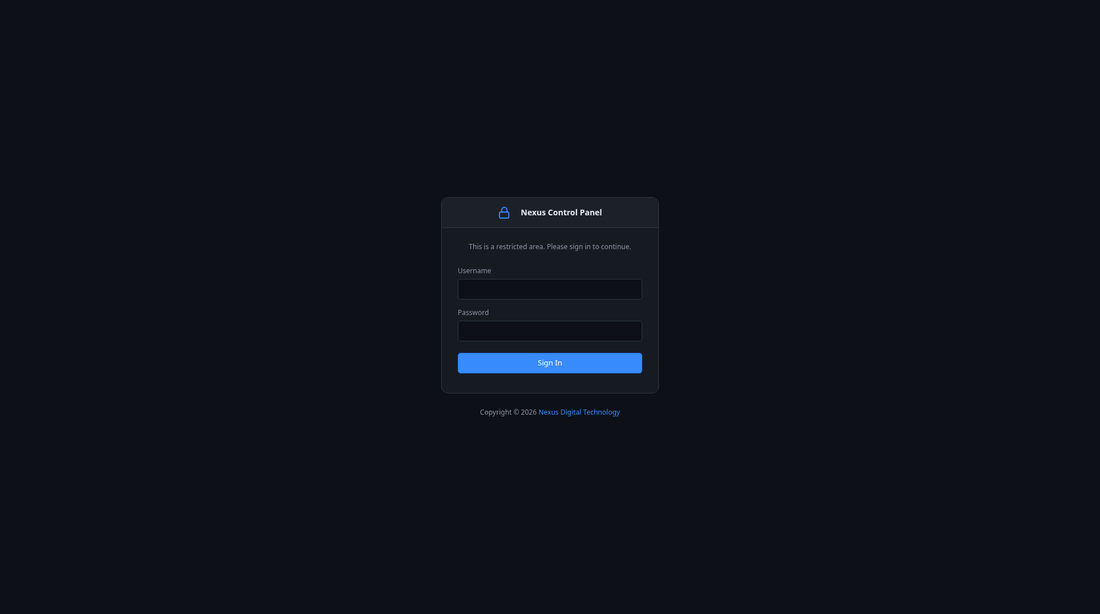
control.nexusdigital.com.au and always check the address bar shows this address before entering your password. Nexus Digital will never email you a link asking for your control panel password.Navigating the sidebar
Every screen in the control panel has the same left-hand sidebar. Your domain name is shown at the top, and the menu is grouped into four sections:
| Section | Menu items | What it's for |
|---|---|---|
| Account (your domain) | Dashboard, Password, Support, User Logs | Account overview, password changes, support requests and activity history. See Password, Support & User Logs. |
| Website | File Manager, Site Settings, Tools, Software, Website Statistics, Schedules, SSL Certificates, Domains | Everything to do with your website files, server settings, security tools, statistics, HTTPS and DNS. |
| View Email Accounts, New Mailbox, New Forward, Webmail | Create and manage mailboxes and forwarding addresses. See Email Accounts. | |
| Database | View Databases, New Database | Create and manage MariaDB/MySQL databases. See Databases. |
Each page also shows a breadcrumb trail under the page title (for example Admin › Domains › Records). Click any part of it to go back a level.
Understanding the Dashboard
The Dashboard is the first screen you see after signing in. It gives you a snapshot of your hosting account in three cards.
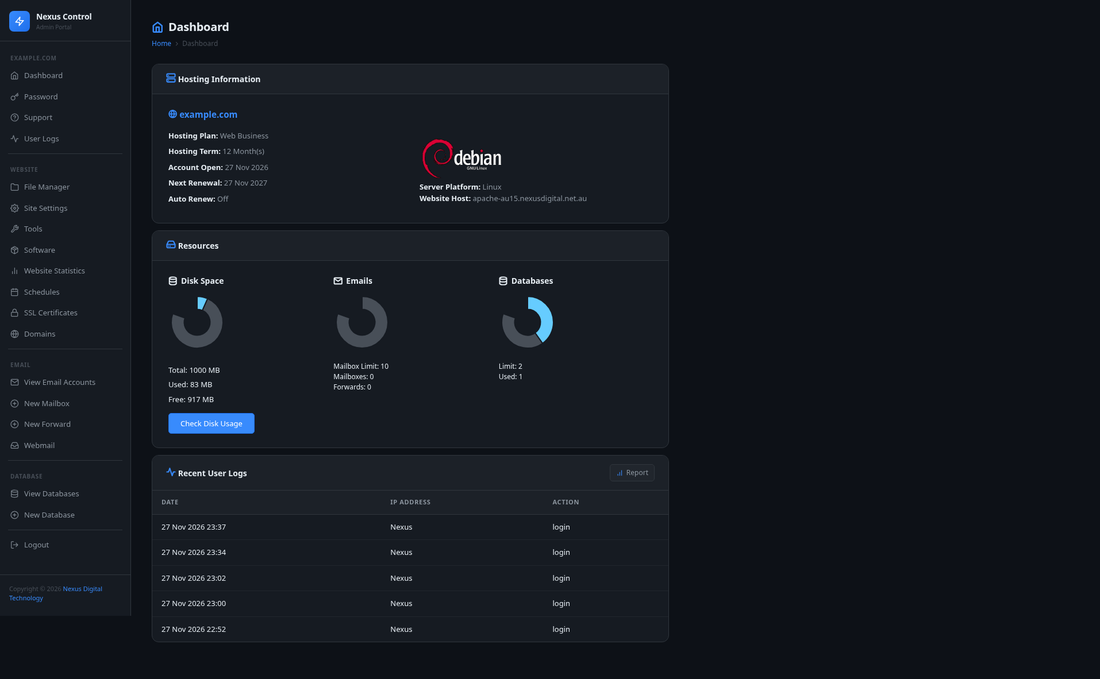
Hosting Information
| Field | Meaning |
|---|---|
| Domain link | Your primary domain (e.g. example.com). Click it to open your website in a new tab. |
| Hosting Plan | The plan your account is on, such as Web Business or Web Enterprise. Your plan sets your disk space, mailbox and database limits. |
| Hosting Term | How long each billing period runs, e.g. 12 Month(s). |
| Account Open | The date your hosting account was created. |
| Next Renewal | The date your hosting is next due for renewal. |
| Auto Renew | Whether the account renews automatically (On) or needs to be renewed manually (Off). |
| Server Platform | Linux (shown with the Debian logo) or Windows. Linux runs PHP websites such as WordPress; Windows runs ASP.NET websites. |
| Website Host | The name of the web server your site runs on (e.g. apache-au15.nexusdigital.net.au). Support may ask for this. |
Resources
The Resources card shows how much of your plan you are using, with a gauge for each resource:
- Disk Space – Total space on your plan, how much is Used and how much is Free (in MB). Click Check Disk Usage to refresh the figures, for example after deleting large files.
- Emails – your Mailbox Limit, the number of Mailboxes created and the number of Forwards set up.
- Databases – your database Limit and how many are Used.
Recent User Logs
The bottom card lists the five most recent actions on your account, with the date and time, IP address and action (such as login). Click Report to open the full User Logs page, which shows the last 200 actions.
Logging out safely
When you have finished, click Logout at the bottom of the sidebar. Always log out on shared or public computers, and never let your browser save your control panel password on a computer other people use.

