
Email Accounts, Mailboxes, Forwarding & Webmail
Email Settings is where you create and manage email accounts for your domain, set up forwarding addresses and find the settings for Webmail, Outlook, iPhone and Mac Mail.
On this page
Email Settings overview
Click View Email Accounts in the Email section of the sidebar.
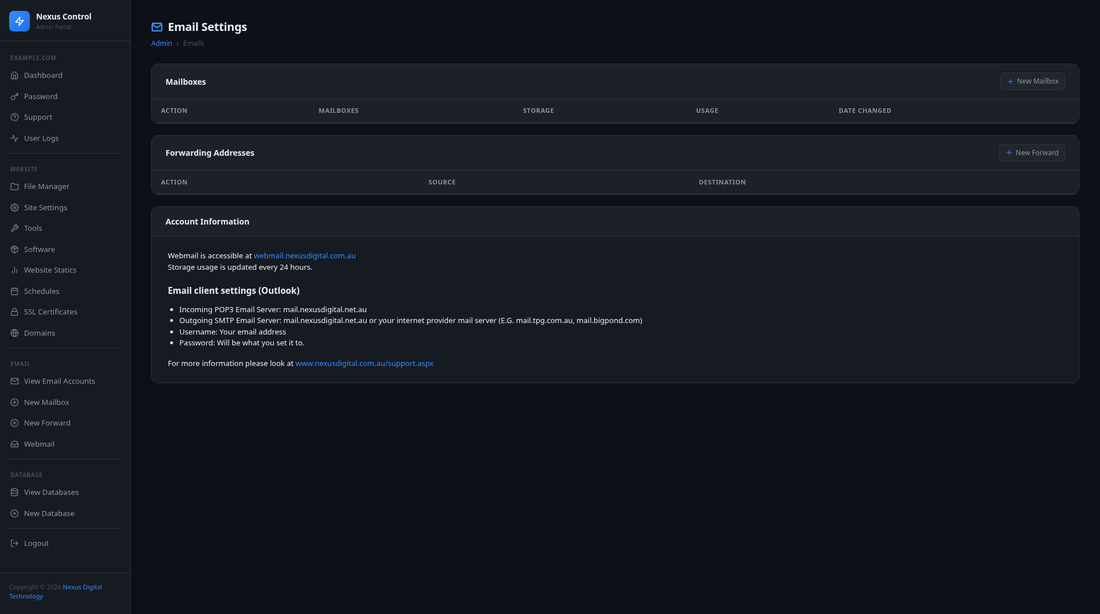
- Mailboxes – every email account on your domain, with its Storage allowance, current Usage and Date Changed. Use the actions to change a mailbox password or delete it.
- Forwarding Addresses – each forwarder's Source address and the Destination it forwards to.
- Account Information – your Webmail address and email client settings.
Storage usage is updated every 24 hours, so recently deleted email may not be reflected straight away. If a mailbox is full, see Why is my mailbox full?
Mailbox or forwarder: which do I need?
| Mailbox | Forwarder | |
|---|---|---|
| Stores email | Yes, on our Australian mail servers | No. Mail is passed straight on. |
| Has a password and can log in | Yes (Webmail, Outlook, phone) | No |
| Can send email | Yes | No |
| Counts towards mailbox limit | Yes | No |
| Good for | Each staff member, e.g. jane@example.com | Role addresses sent to an existing inbox, e.g. sales@ to jane@ |
Creating a new mailbox
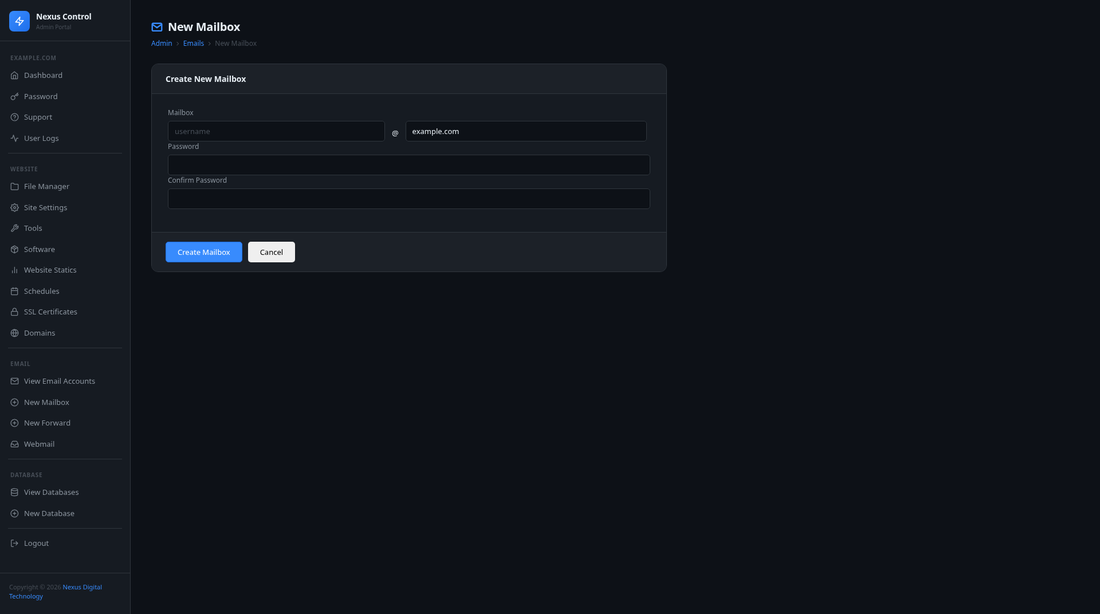
- Click New Mailbox in the sidebar (or + New Mailbox on the Email Settings page).
- In Mailbox, type the part before the @, e.g.
jane. Your domain is shown after the @. - Enter a strong Password and type it again in Confirm Password.
- Click Create Mailbox.
Tip: Your plan's mailbox limit is shown on the Dashboard. Use forwarders for role addresses like
info@ to save mailboxes.Creating an email forward
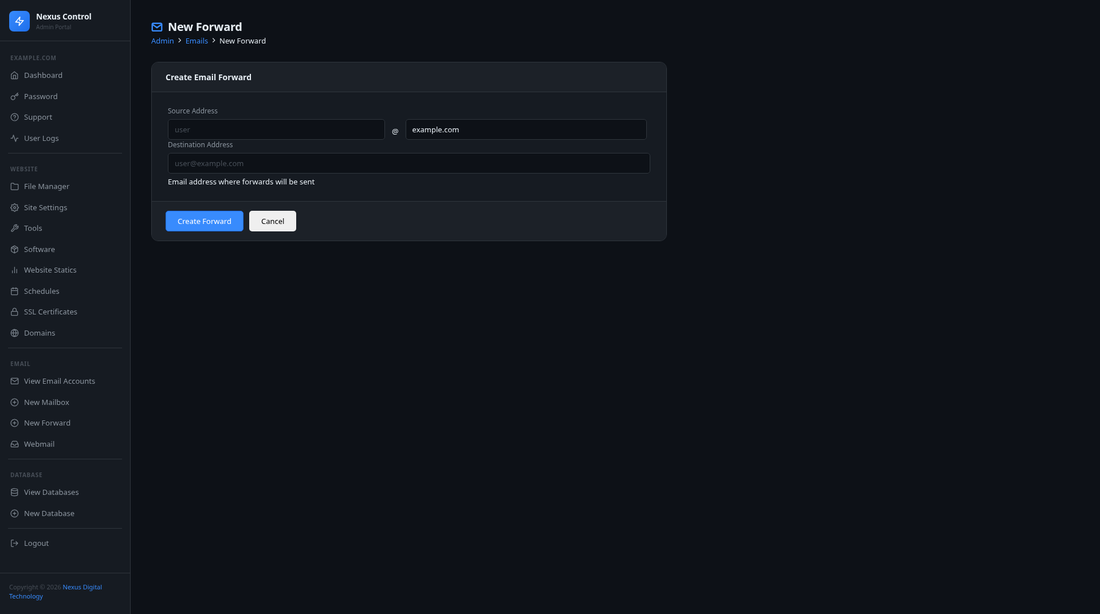
- Click New Forward in the sidebar (or + New Forward).
- In Source Address, type the part before the @ of the address to forward, e.g.
sales. - In Destination Address, enter the full email address where forwarded mail should be sent, e.g.
jane@example.com. - Click Create Forward.
Forwarding to Gmail, Outlook.com or Bigpond? Spam that arrives at your forwarder is forwarded too, which can make those providers reject or delay your mail. For important addresses, a mailbox is more reliable.
Using Webmail
Webmail lets you read and send email from any web browser, with nothing to set up. Go to https://webmail.nexusdigital.com.au/ (or click Webmail in the sidebar) and sign in with your full email address and mailbox password.
Email client settings
To use your mailbox in Outlook, on an iPhone or in Mac Mail, use these settings:
| Setting | Value |
|---|---|
| Incoming mail server (POP3) | mail.nexusdigital.net.au |
| Outgoing mail server (SMTP) | mail.nexusdigital.net.au, or your internet provider's mail server (e.g. mail.tpg.com.au, mail.bigpond.com) |
| Username | Your full email address, e.g. jane@example.com |
| Password | The mailbox password you set when creating the mailbox |
| Outgoing server authentication | Turn on "My outgoing server (SMTP) requires authentication" and use the same settings as incoming. Use port 587 if port 25 is blocked. |

