
Scheduled Tasks (Cron Jobs)
Schedules lets you run tasks automatically. A scheduled task (also called a cron job) requests a web address on your website at the times you choose, which triggers a script to run.
Viewing scheduled tasks
Click Schedules in the Website section of the sidebar to see all scheduled tasks on your account.

| Column | Meaning |
|---|---|
| Action | Options to edit or remove the task. |
| ID | The task's unique number. |
| Name | The name you gave the task. |
| Active | Whether the task is switched on. |
| Date Created | When the task was created. |
| URL | The web address the task requests. |
| Month / Day / Week Day / Hour | When the task runs. "Any" means every month, day or hour. |
| Last Ran | When the task last ran. Check this to confirm a task is working. |
Creating a new schedule
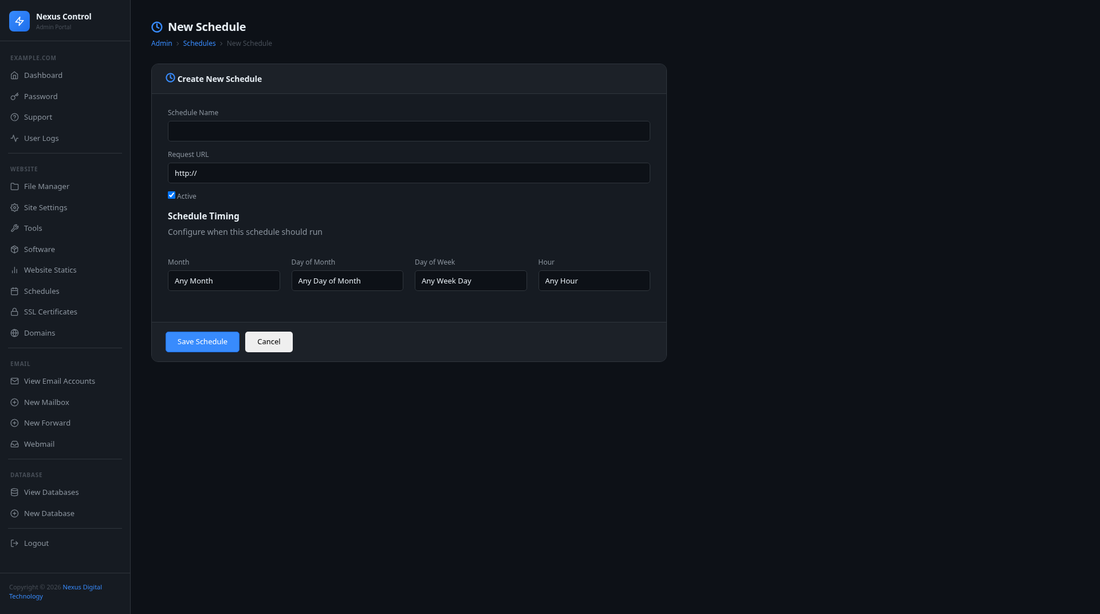
- Click + New Schedule at the top right of the Scheduled Tasks card.
- Enter a Schedule Name that describes the task, e.g. WordPress cron.
- Enter the Request URL, the full address of the script to run, starting with
https://once you have an SSL certificate. - Leave Active ticked to switch the task on. Untick it to save the task without running it.
- Under Schedule Timing, choose when it runs:
- Month – Any Month, or a specific month.
- Day of Month – Any Day of Month, or a date from 1 to 31.
- Day of Week – Any Week Day, or a specific day such as Monday.
- Hour – Any Hour (every hour), or a specific hour from 0 (midnight) to 23 (11 pm).
- Click Save Schedule.
Practical examples
| Task | Request URL | Timing |
|---|---|---|
| WordPress scheduled posts, emails and plugin jobs | https://example.com/wp-cron.php | Any Month, Any Day, Any Week Day, Any Hour (hourly) |
| Nightly stock or product sync | https://example.com/sync/products.php | Any Month, Any Day, Any Week Day, Hour 2 (2 am) |
| Weekly sales report email | https://example.com/reports/weekly.php | Any Month, Any Day, Monday, Hour 7 (7 am) |
| Monthly clean-up of old records | https://example.com/tasks/cleanup.php | Any Month, Day 1, Any Week Day, Hour 3 |
WordPress tip: by default WordPress runs
wp-cron.php when someone visits your site, which can be unreliable on quiet sites and slow on busy ones. Ask your developer to add define('DISABLE_WP_CRON', true); to wp-config.php and create an hourly schedule for wp-cron.php instead.Keep task URLs private. Anyone who knows a task's URL can trigger it. Use hard-to-guess file names or a secret key in the URL (e.g.
?key=...) for scripts that change data or send emails.
